
Prepare your TV
Check to see if your TV is supported
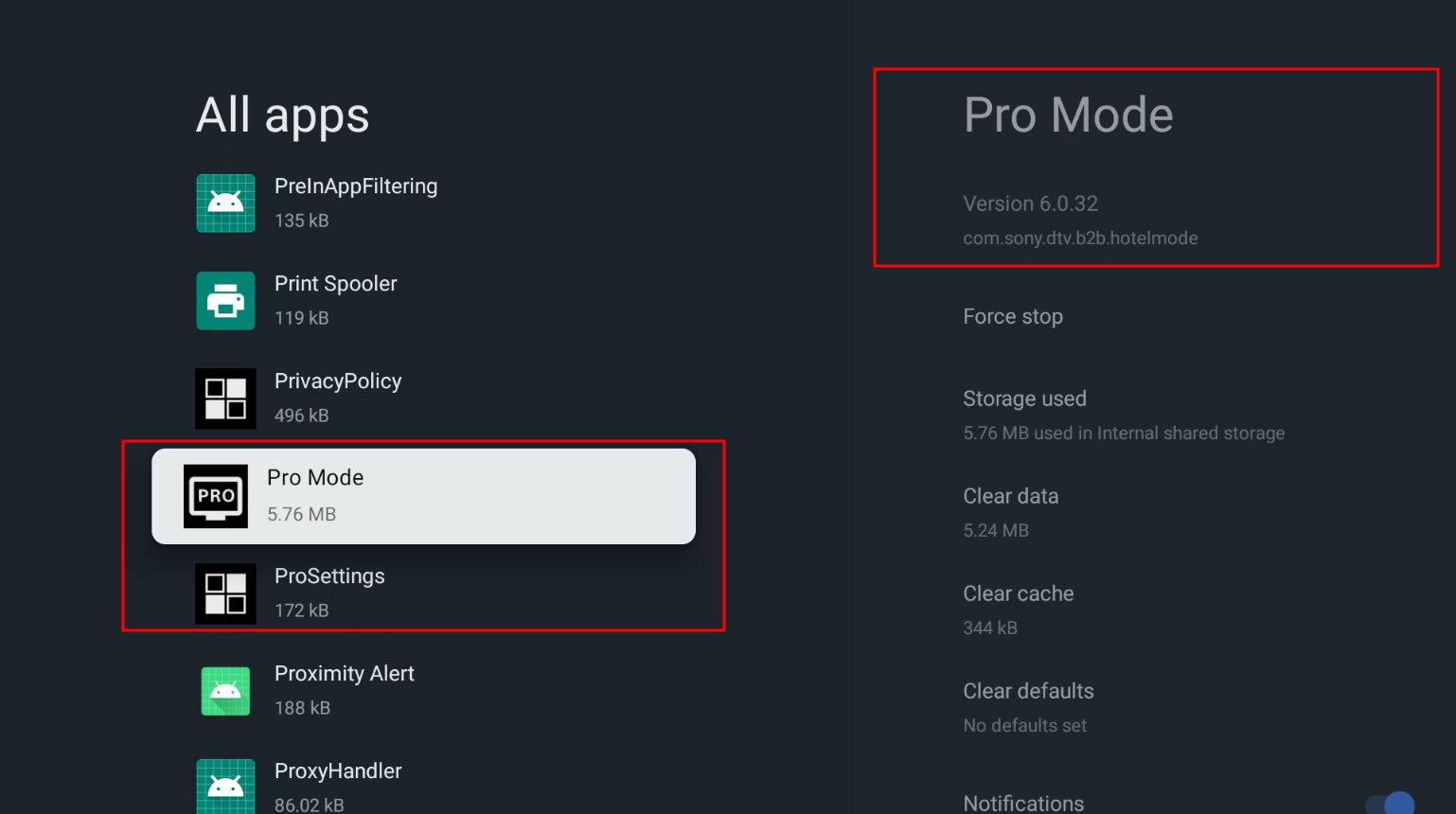
Now we can check if your TV is supported by checking to see if "ProMode" and "ProSettings" is installed or not in your "All apps" section in your settings menu.
On your TV go to the settings app and in order go to:
- Apps
- See all apps
- Show system apps
Then in the list, look for the app called "Pro Mode" it will have this under the name on the right -> com.sony.dtv.b2b.hotelmode
If you see under it or in the "All apps" list somewhere, there should be another item called "ProSettings" and it will have this under its name on the right -> com.sony.dtv.b2b.prosettings, and if so, then your TV should be supported. Example below.
Side note: you also don't need to be signed into a google account to do this.
Getting ADB debugging Enabled
To enabled Developer Options we can do this in order in settings again:
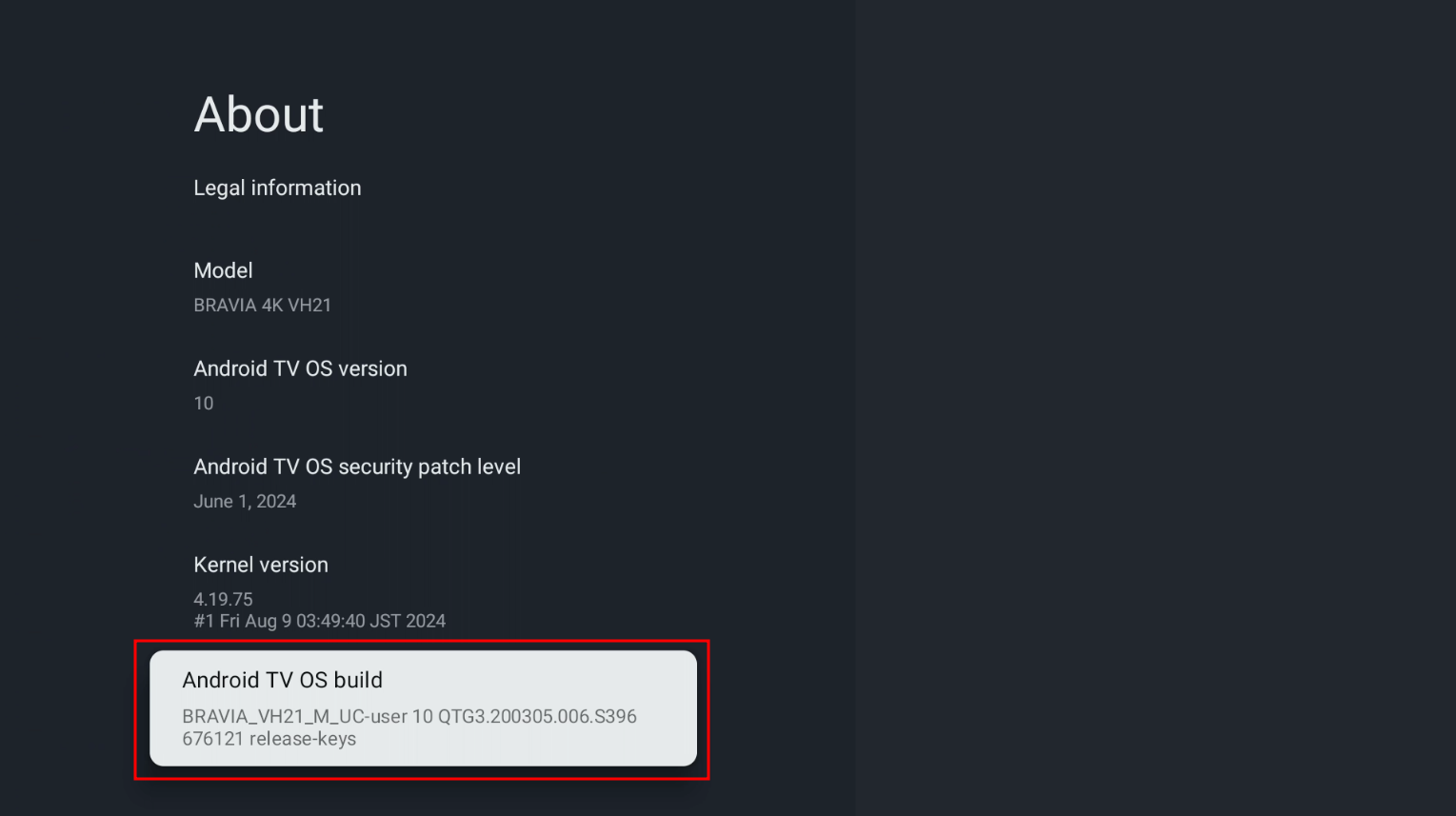
Turning on ADB debugging
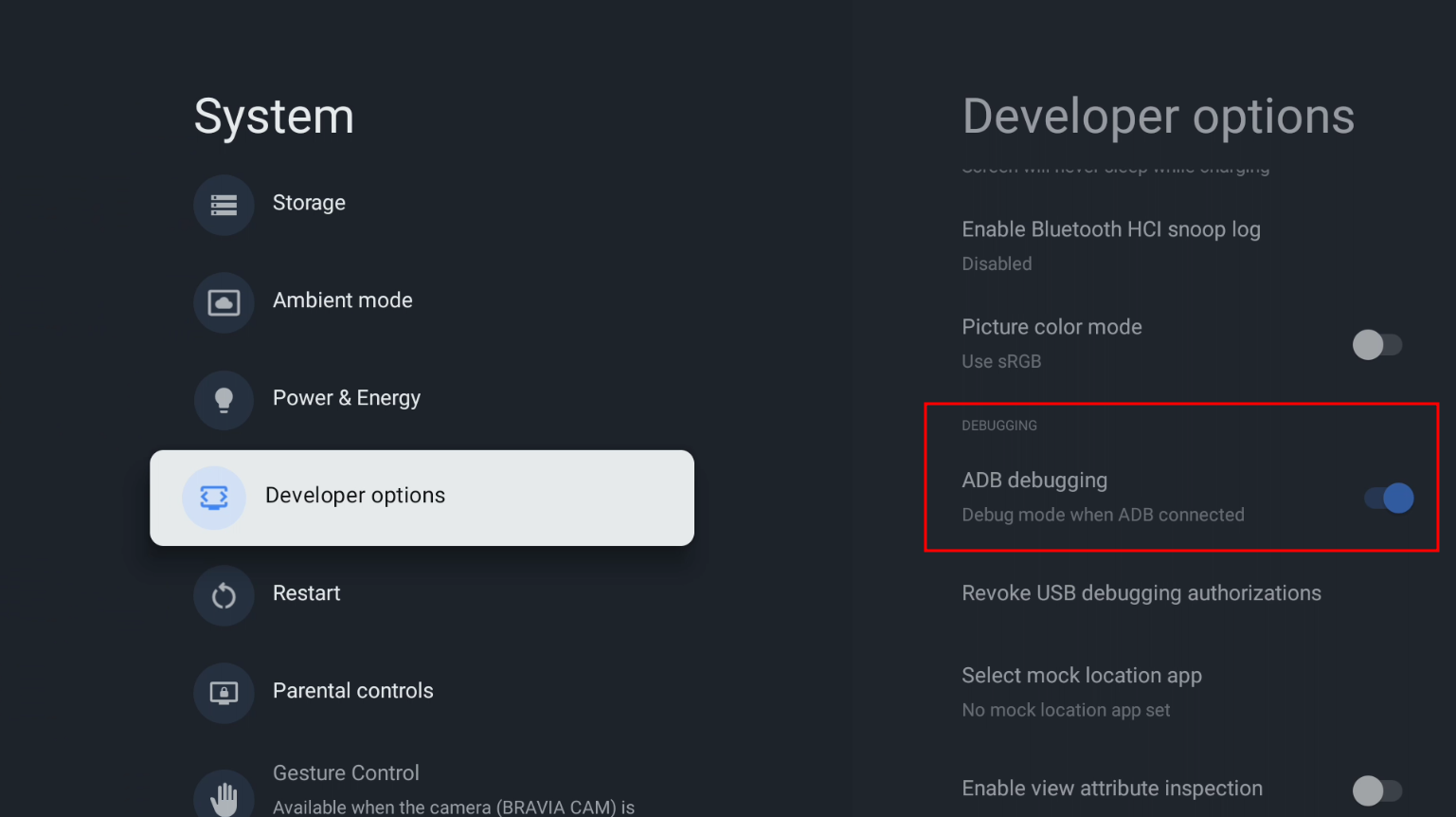
Now to actually turn ADB debugging on follow these steps:
- Go back one page
- Scroll down until you see the new option "Developer options"
- When you click on it, scroll down a little and you'll see the option "ADB debugging" and enable that.
Getting your TV's IP address
Now when we're ready to side-load our app, we need to use adb but it requires the TV's IP address to connect to it so to get it you do this in order:
- Go back to the settings main menu
- Network & Internet
- Hover over your network name that your TV is connected to
- On the right side it should say "IP address" note that down or remember it for later