
Installing the APK
Connecting to the TV
Now for both Operating Systems, the command is similar to each other.
First we need to connect to the TV over adb.
Windows:
Windows: Type this in Command Prompt: adb.exe connect Your-TV-IP (Replace "Your-TV-IP" with the TV's IP we got earlier.)
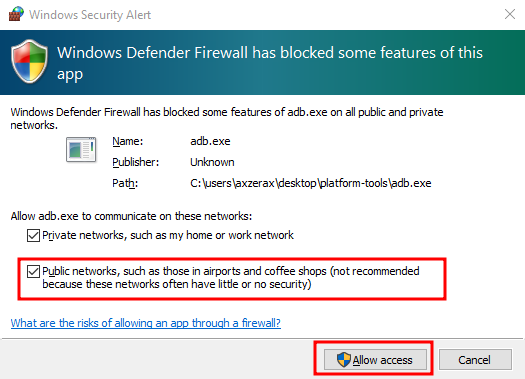
You may get a firewall notice to allow adb, you need to allow it. Example below.
Linux:
Linux: Type this in your terminal: adb connect Your-TV-IP (Replace "Your-TV-IP" with the TV's IP we got earlier.)
You also may need to allow this in your firewall, you can search this up for whatever firewall you're using.
Allowing the computer to connect
Now it will say that it's starting it's daemon and not connect. So to make it connect, on your TV screen it will have a message on it, saying something like "Allow USB debugging".
You need to check the option to "Always allow from this computer" or it will keep coming up. Then click "ok".
Then type the same command above again and it should say something like "Already connected to <IP-of-your-tv>". Which means we are connected now, great!
Side-loading ProModeTool.apk
Now we can go ahead and side-load the .apk file for "ProModeTool". So to do this type this command in your terminal depending on your Operating System below.
On Windows: drag the folder called "ProModeTool" to the directory where adb is.
On Linux: Open your terminal to where the "ProModeTool" folder is or cd to that location.
Windows: adb.exe install ProModeTool\ProModeTool.apk
Linux: adb install ProModeTool/ProModeTool.apk
It should say "Preforming streamed install" and then it should return no errors when finished.
And that's it for installing the tool.