
Extracting the firmware
Extracting the "system.img" partition
In the command prompt window type this as follows to extract the "system.img" partition from the firmware file we downloaded.
Also when typing this below, you can press the "tab" key to autocomplete the names of the files and directories like the scripts folder name.
python scripts-dd225e1cebc81f693ac1b981ac853cf819321b49\update-payload-extractor\extract.py payload.bin --output_dir partitions --partitions system
This may take some time depending on your system.
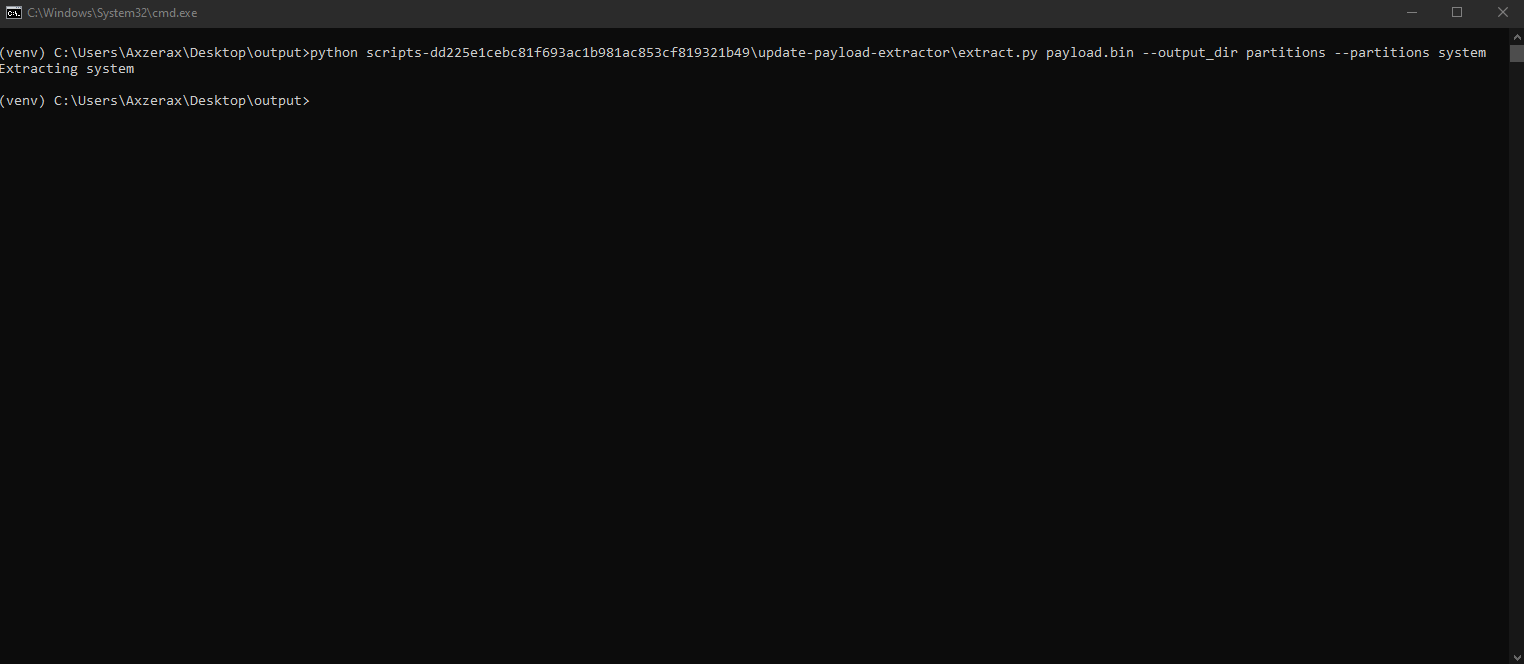
Once it finishes you'll notice we now have a new folder called "partitions" and that's where our extracted partition is located.
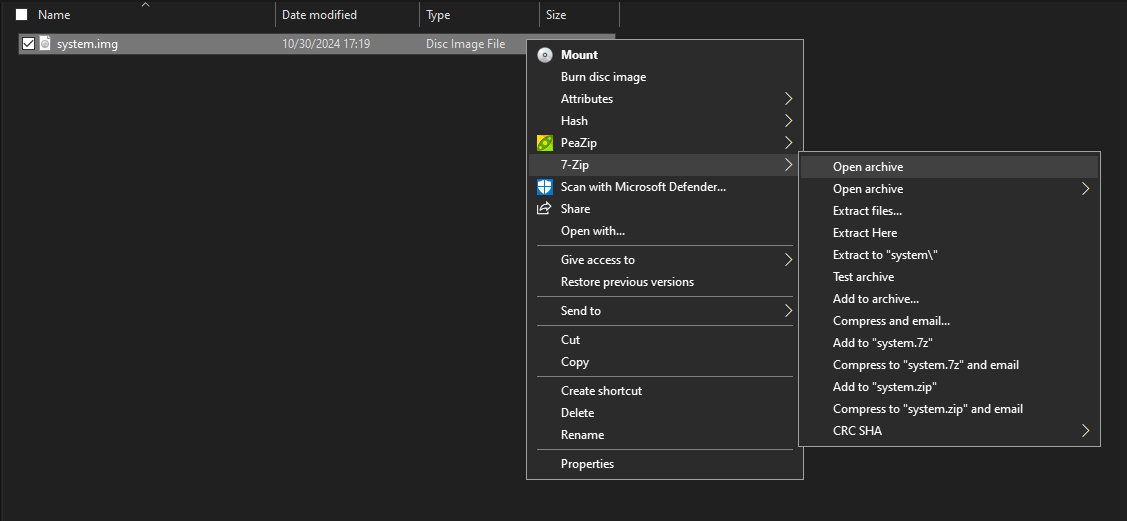
Go into the new partitions folder, the "system.img" file is not really the system.img file it's actually like a zip archive with no compression (or a .tar file) and we need the actual system.img file which is inside of it. That's why we downloaded 7zip at the start.
So now open the system.img file with 7zip, we can do this by right clicking on the file and clicking "7zip" -> "Open archive"
Once that opens you'll notice there's 3 .img files but we only need the "system.img" file.
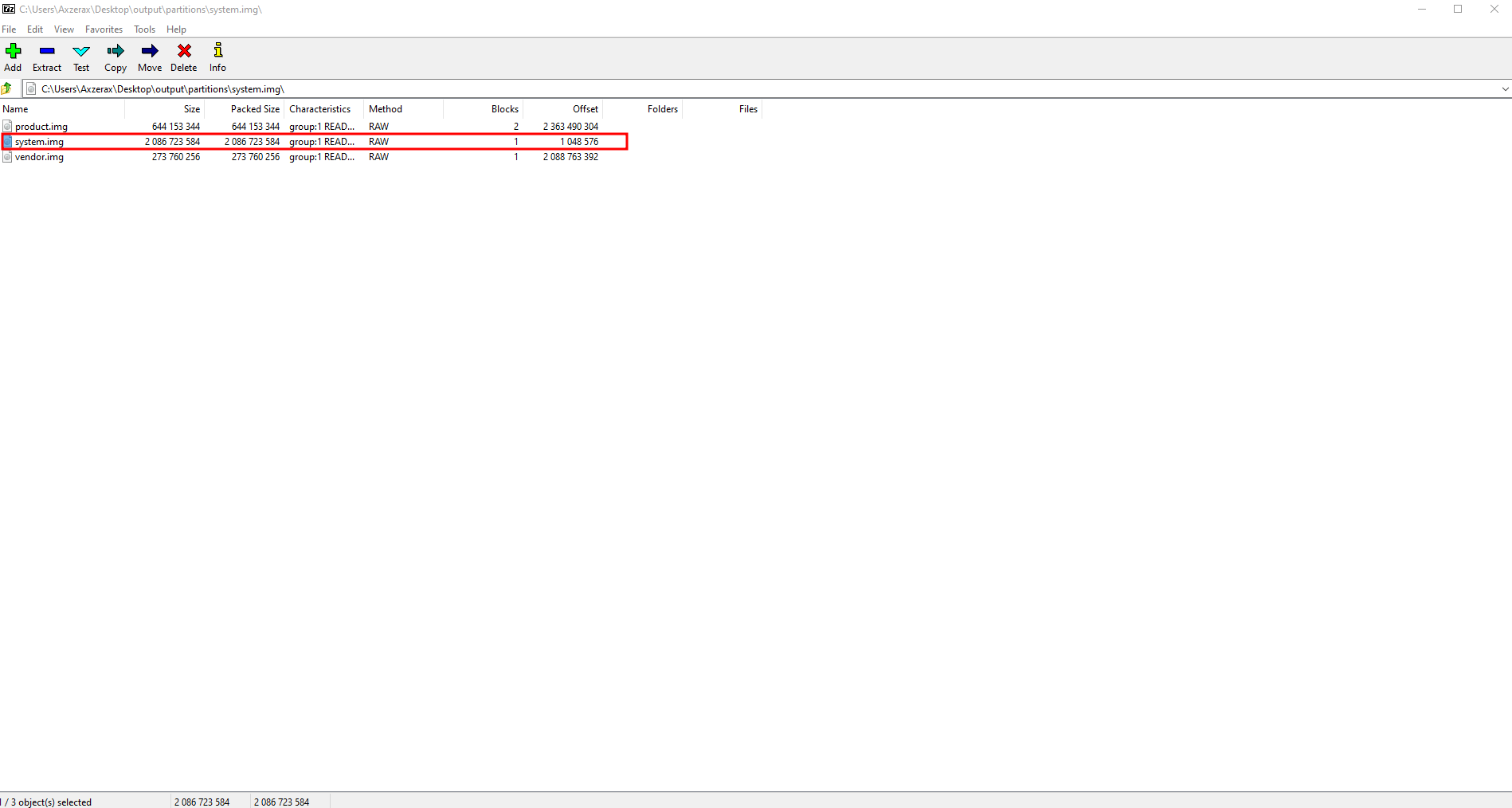
So you can move the system.img file in the system.img file partition to the root of our output folder (Where we have all our folders in the output folder and our payload.bin file) or even your desktop. (Whatever one you like)