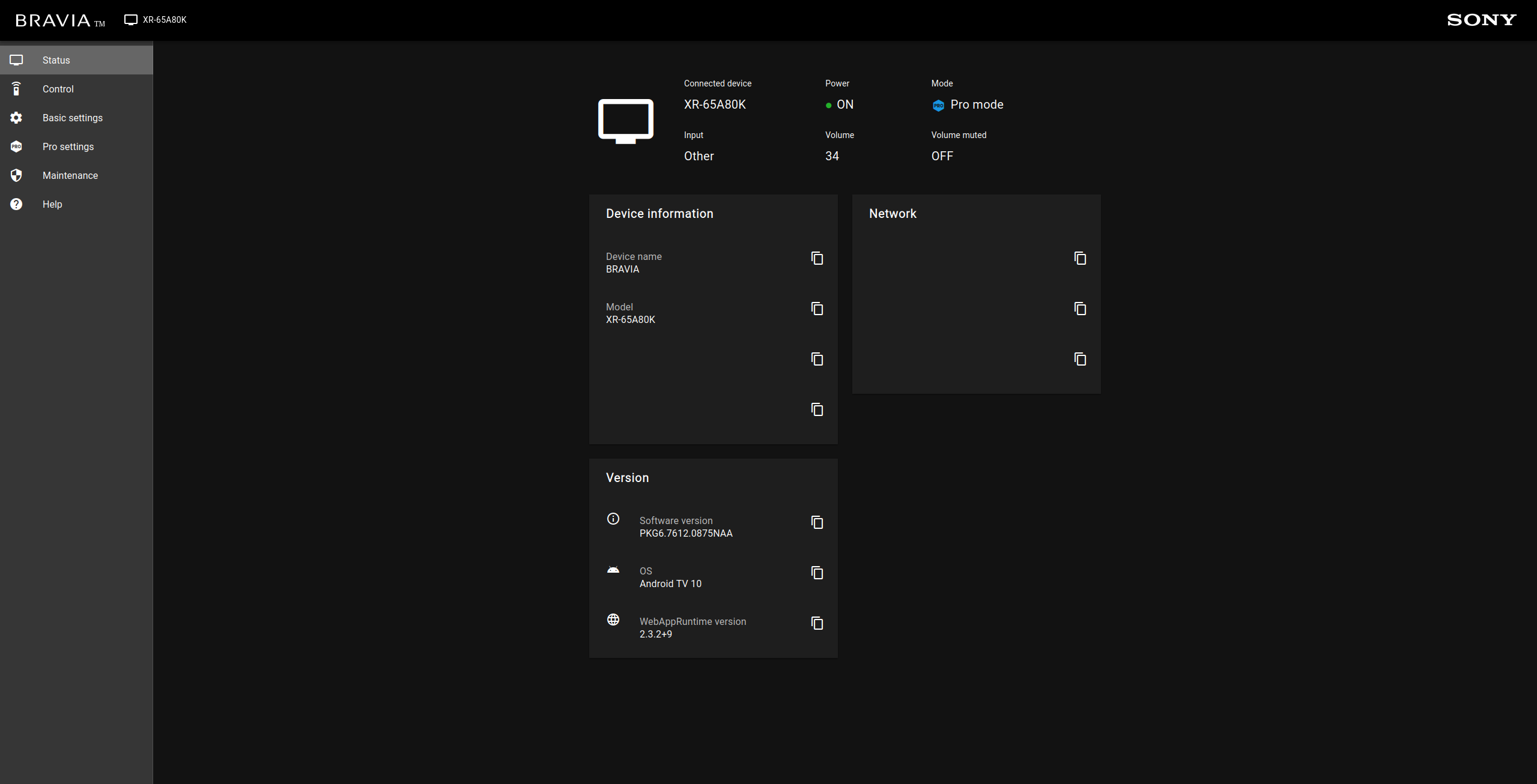
Starting ProModeTool
Launching ProModeTool
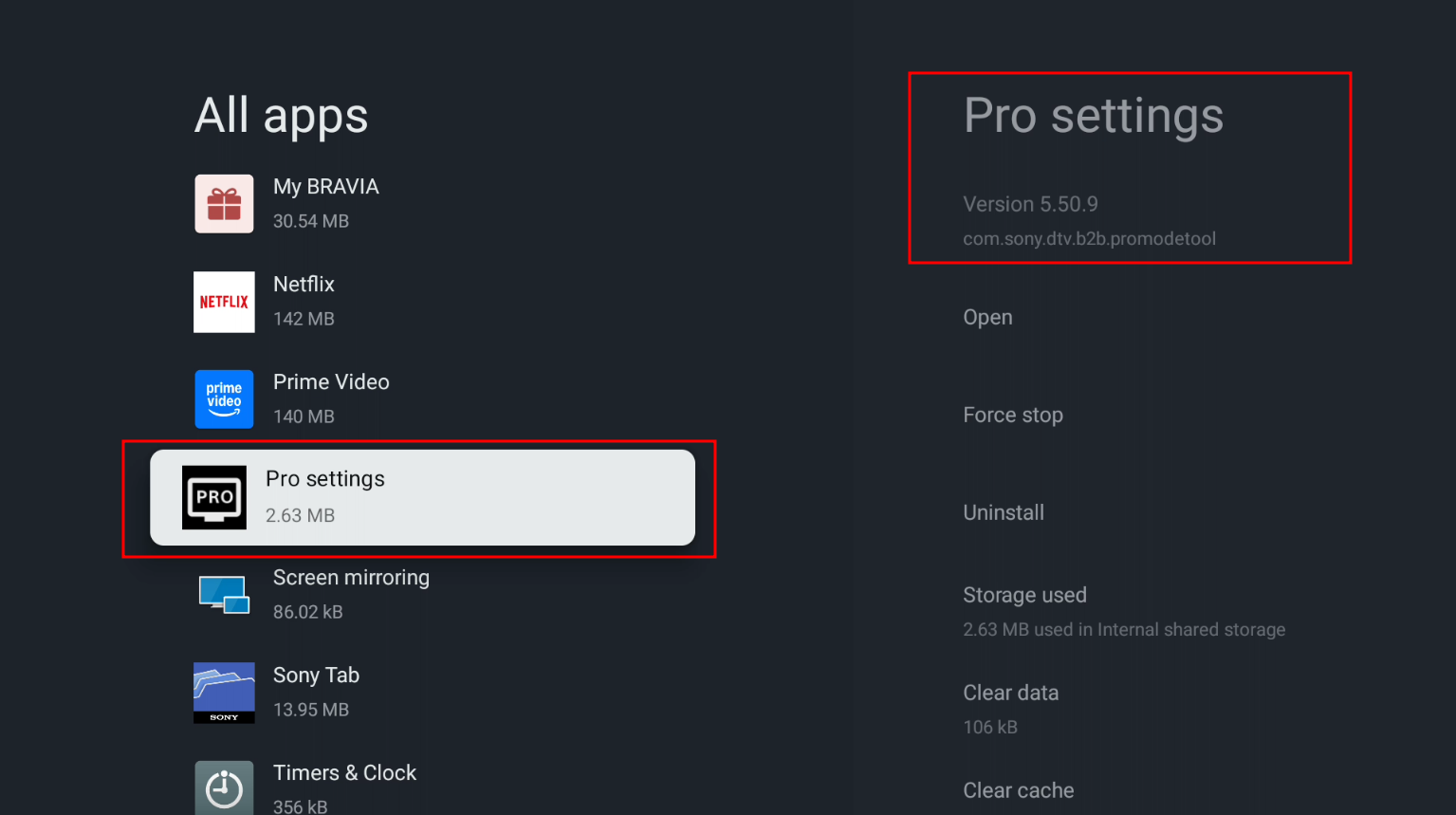
Now when you go back to your TV, if it's not on your home screen in the "Apps" section then go to your Settings -> Apps -> See all apps
Then look for the tool we just installed. It should be named "Pro settings" (com.sony.dtv.b2b.promodetool) under the name on the right. You can open it from there or your home screen if you have it there.
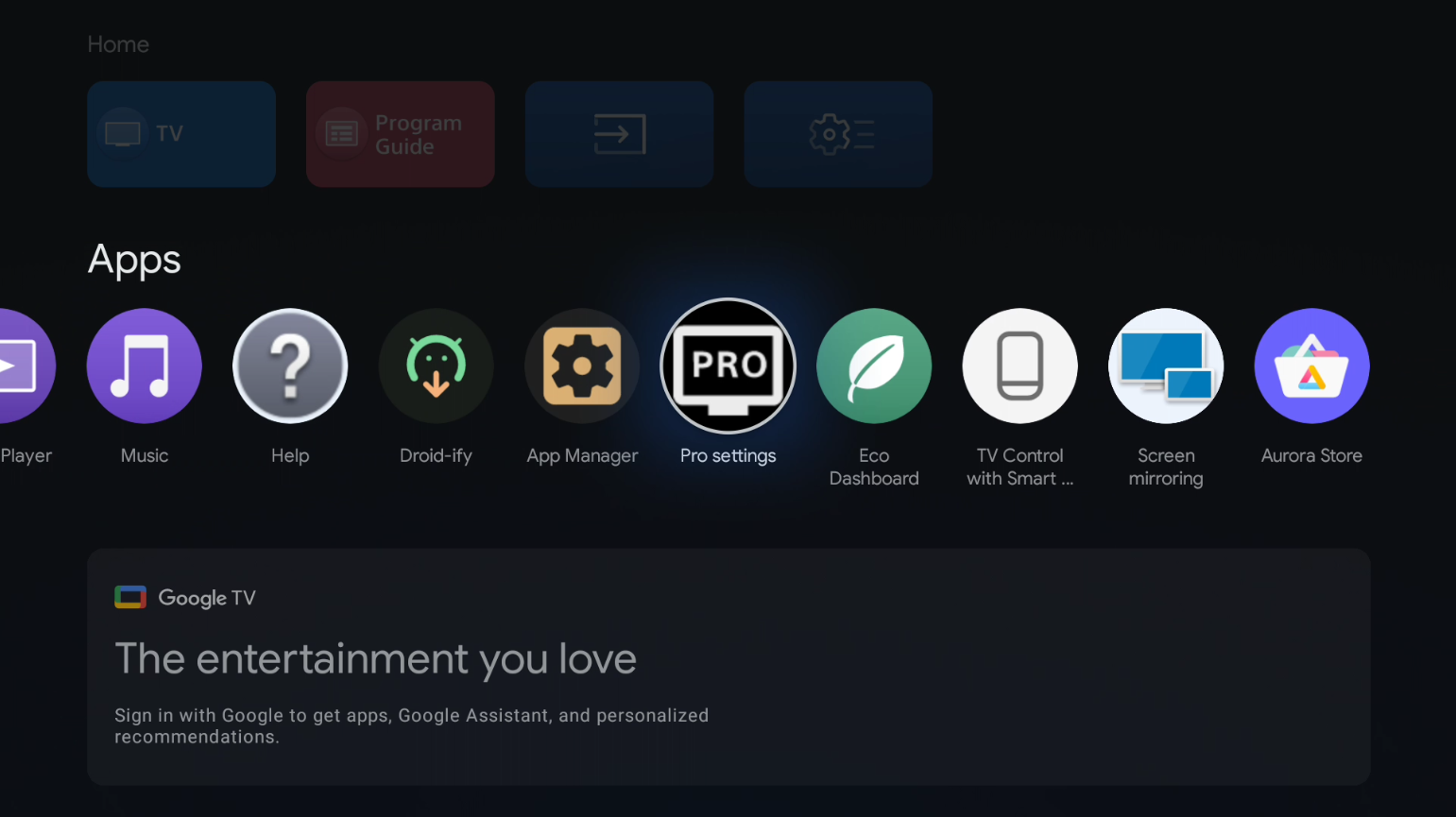
On your Home screen:
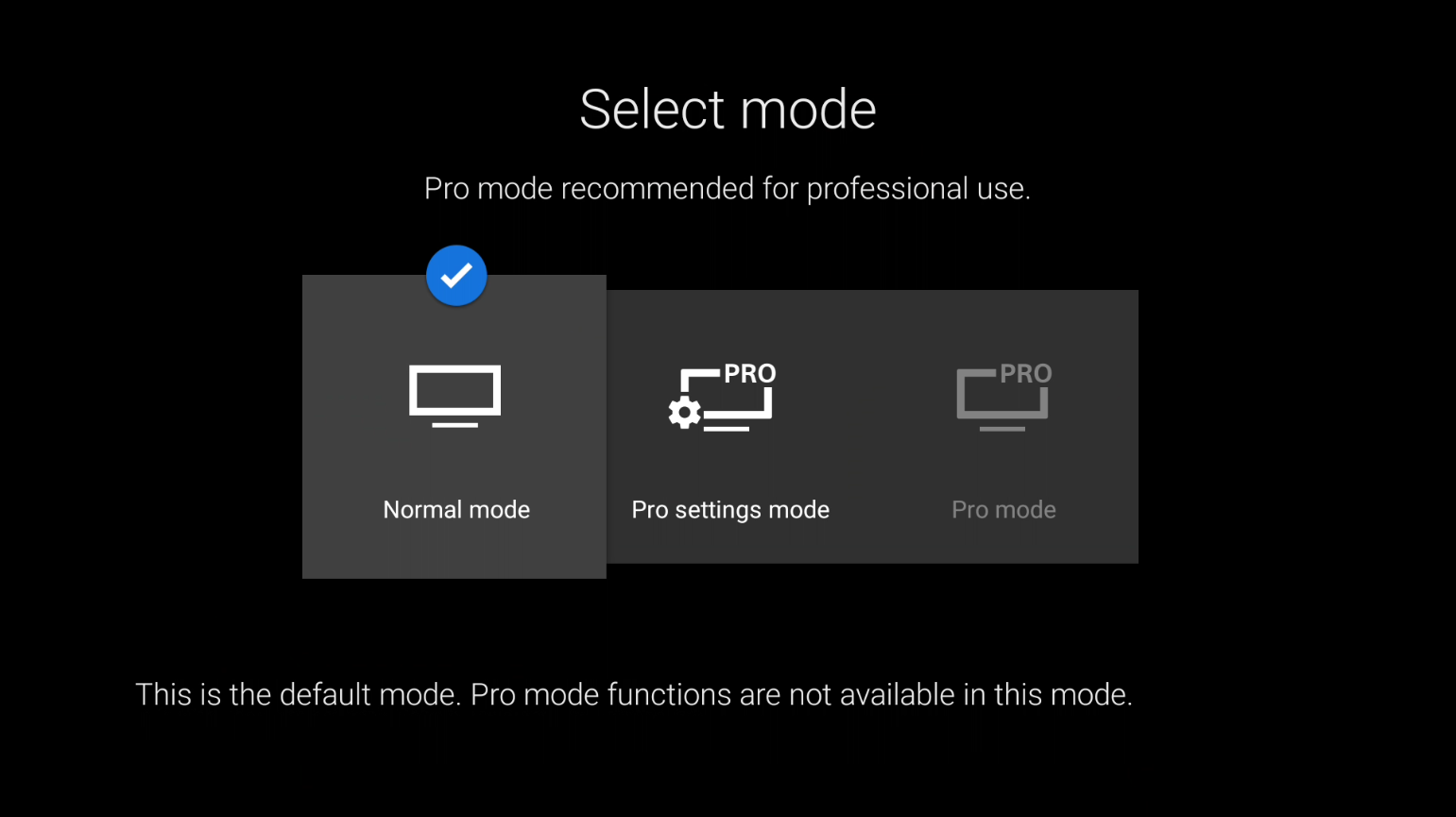
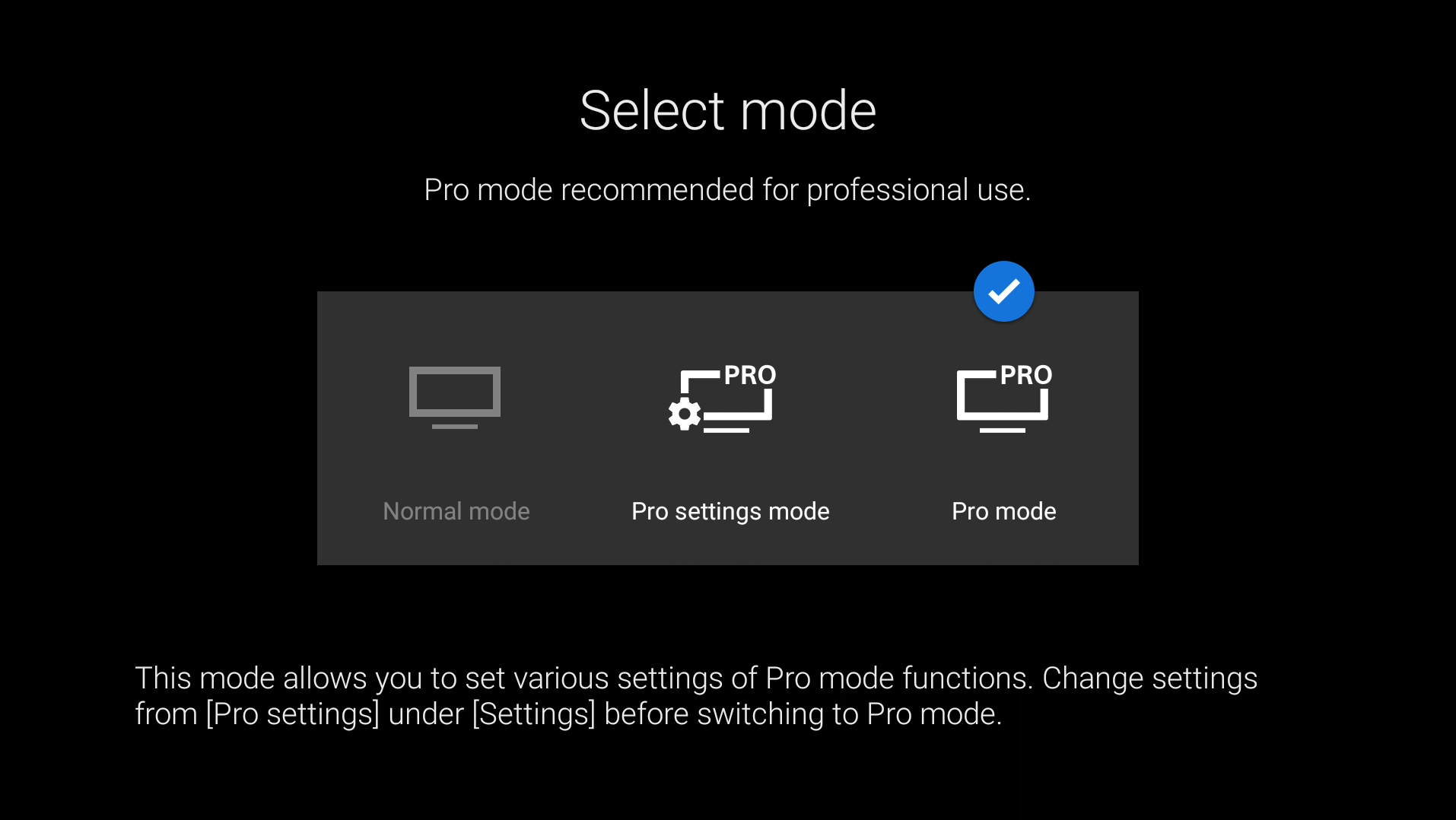
When you launch it you are met with some options but to start we need to go into "Pro settings mode".
When you click on that mode and click ok to start that mode, you will see some permission prompts show up on your TV (For me it was 3 - 4 of them), you need to make sure you accept them all for it to work. For me it had a default app icon for the permission prompt, could be different for you, somewhat like this:

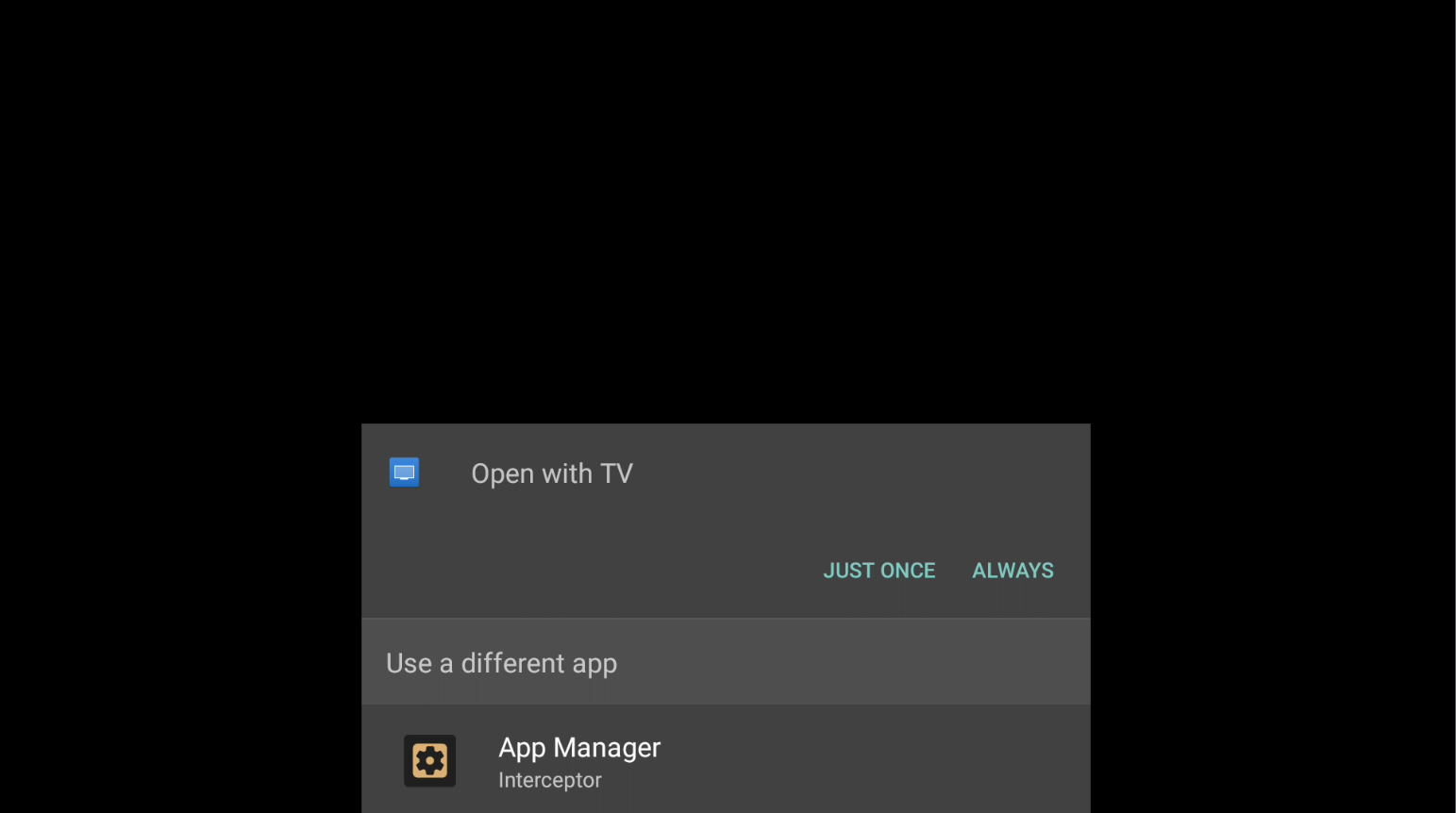
It may also show up with another thing asking "what do you want to open this app with" with the TV app in the list. Don't click any of them and just click on your back button on your remote once. Example:
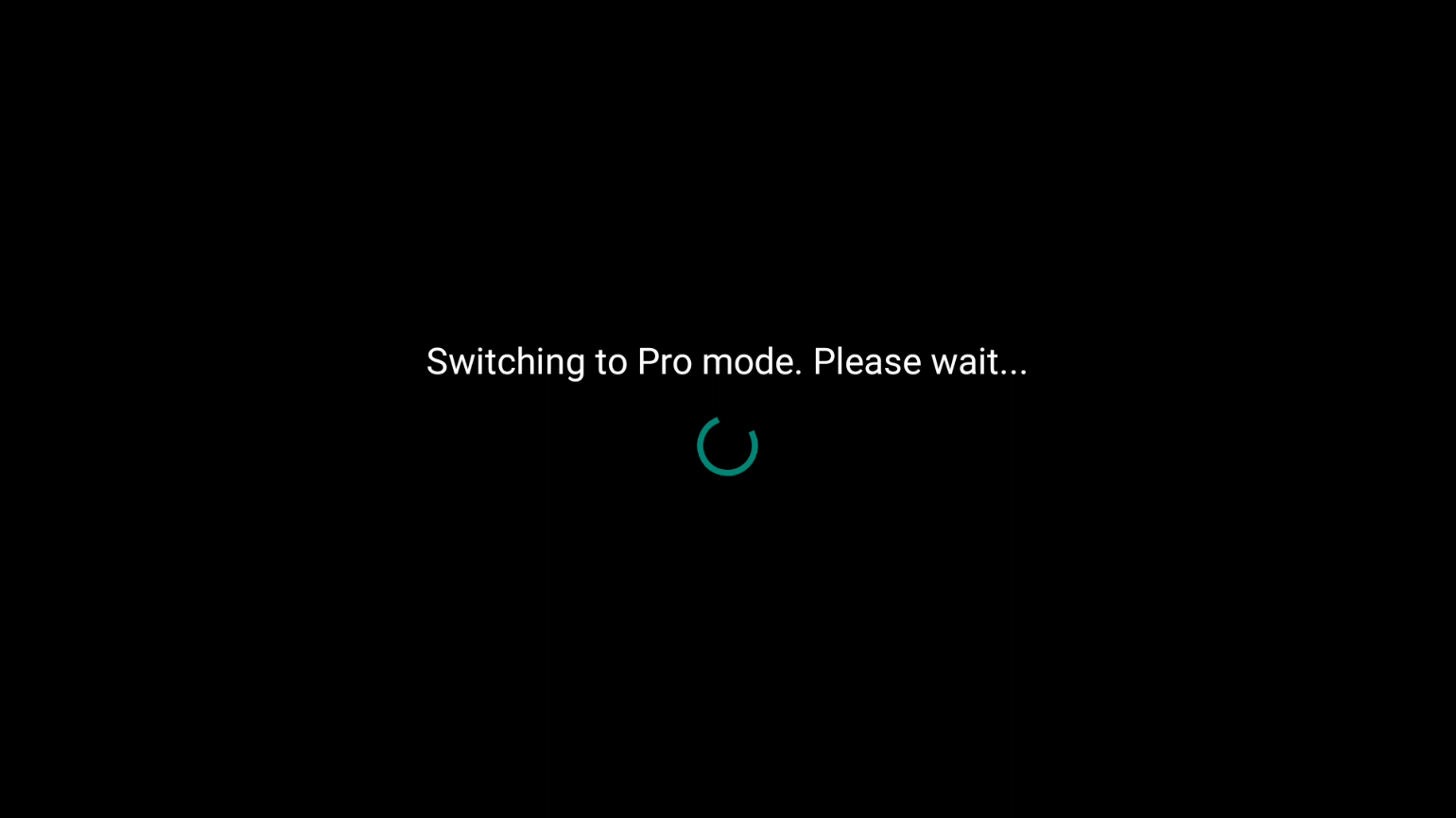
It may look like it's frozen or it's stuck loading or just a black screen. For me the first time I launched it, it took 30 seconds to 1 minute for it to say that it's "Restarting the TV". So I would wait at least up to 5 - 10 minutes at most before trying it again (If you do need to do that, make sure you close the app fully in settings).
Then you should be in the "Pro settings mode" and you can now do whatever you want with it, and if you want the full "Pro Mode", then go back in the app and click "Pro Mode" and let the TV restart again.
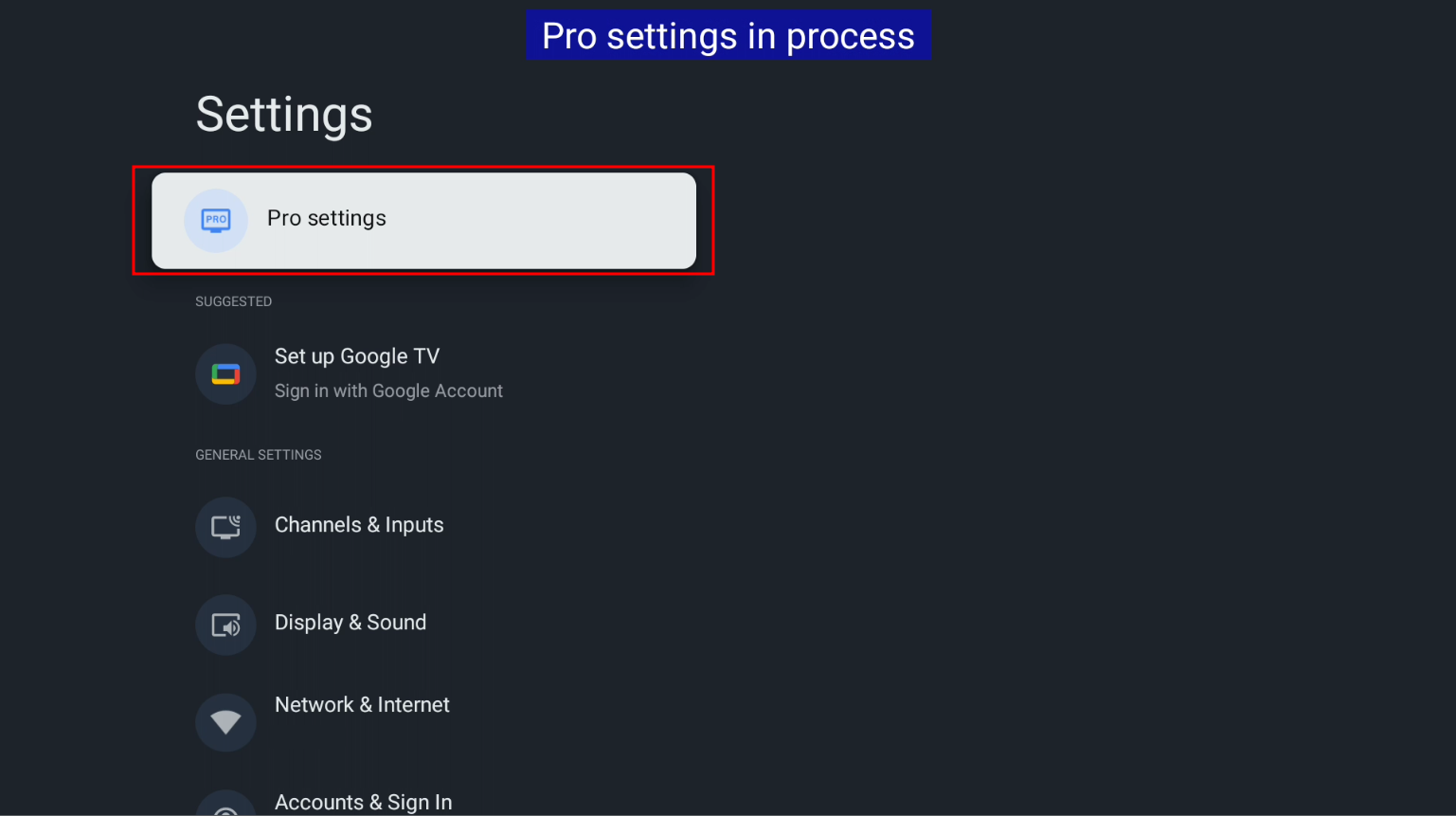
There's a new settings menu in the settings app as well.
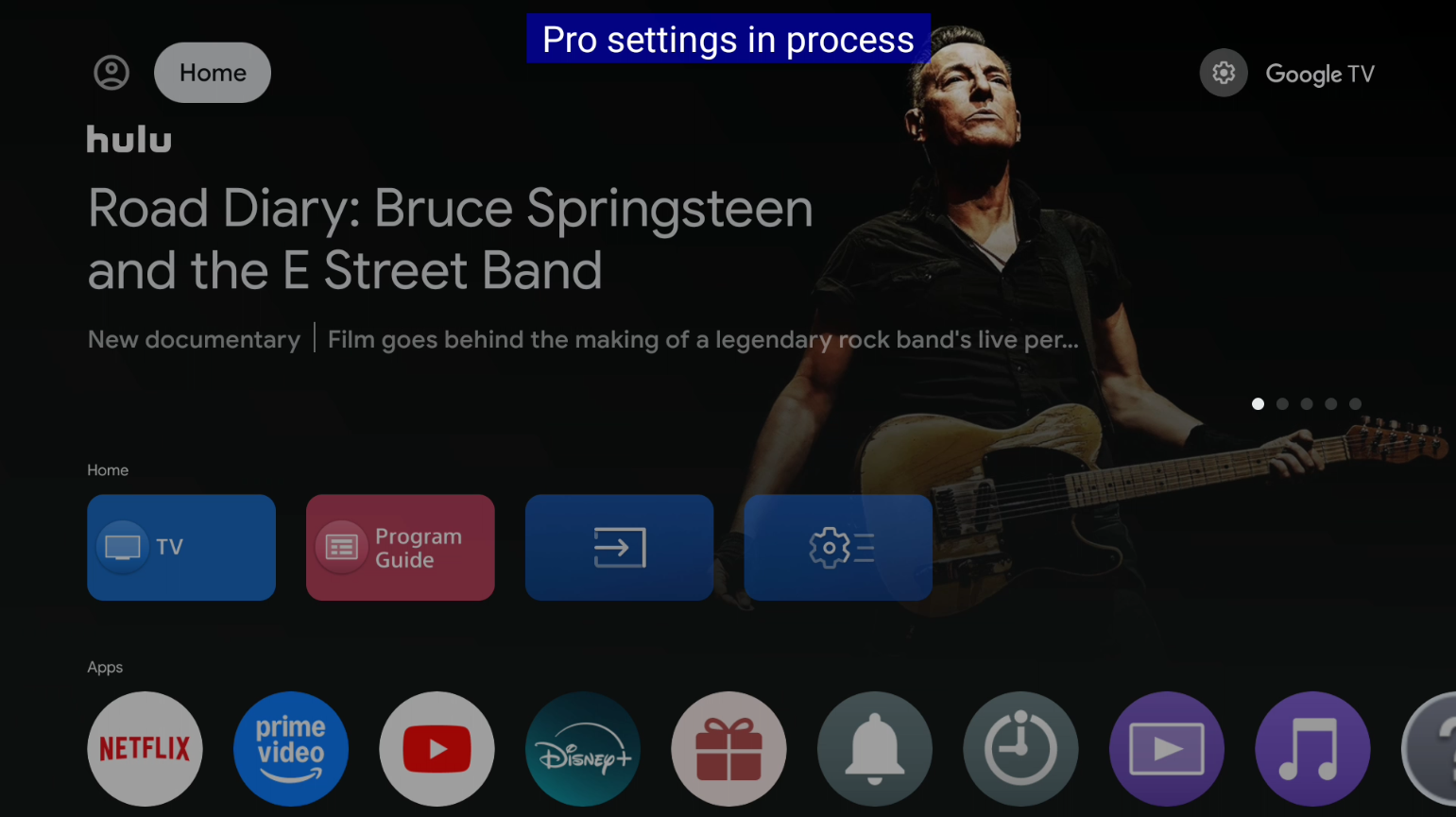
ProSettings Home menu Example:
ProSettings Settings Menu Example:
To access this, it's in your settings app at the very top.
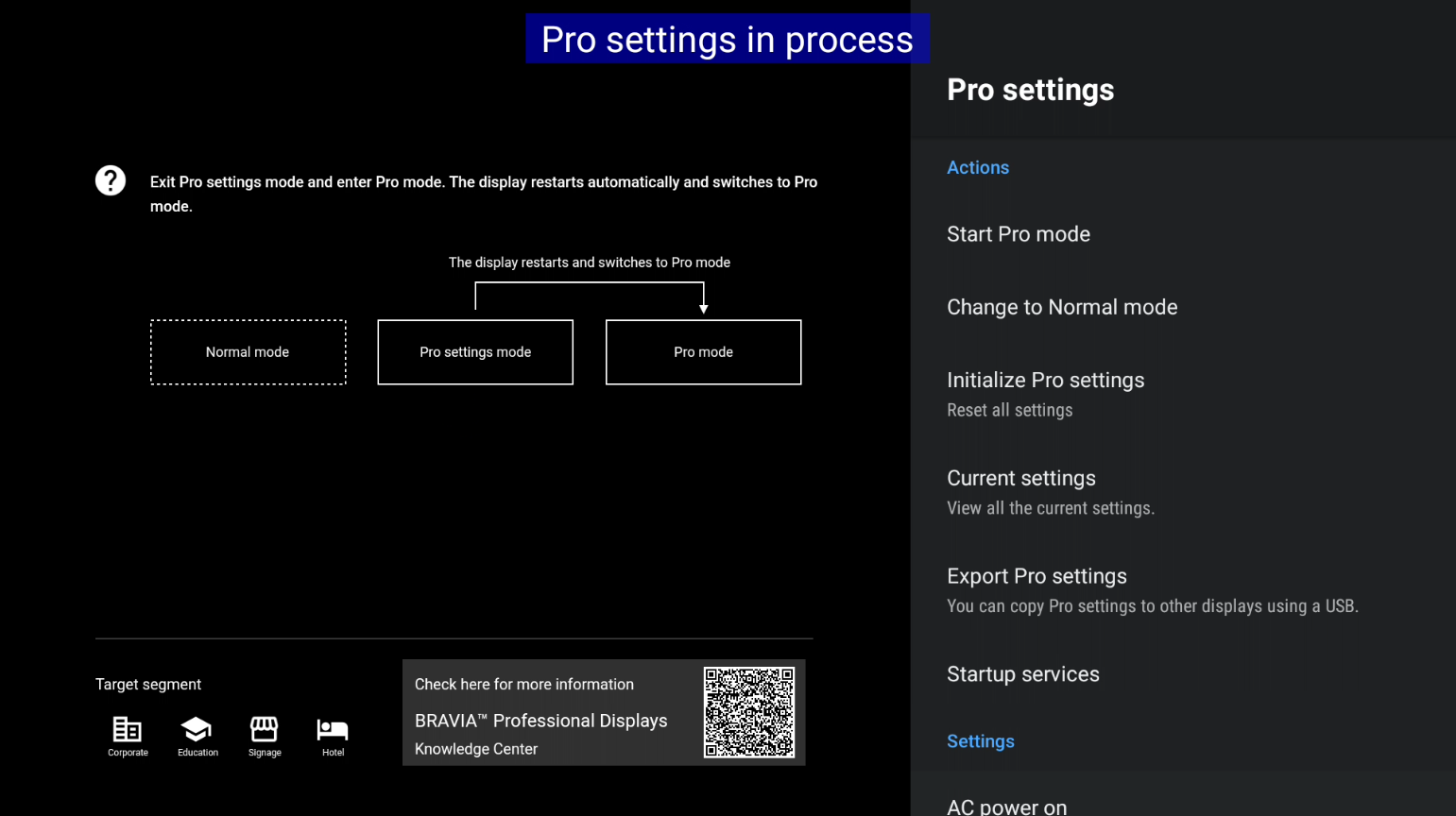
Warning
This is a good time to say that you really should go to the menu in the settings app for the "Pro settings mode" and go to the allowed apps in "ProMode" and allow the "ProModeTool" so you can go back to the other modes since I'm not sure if you can without doing that.
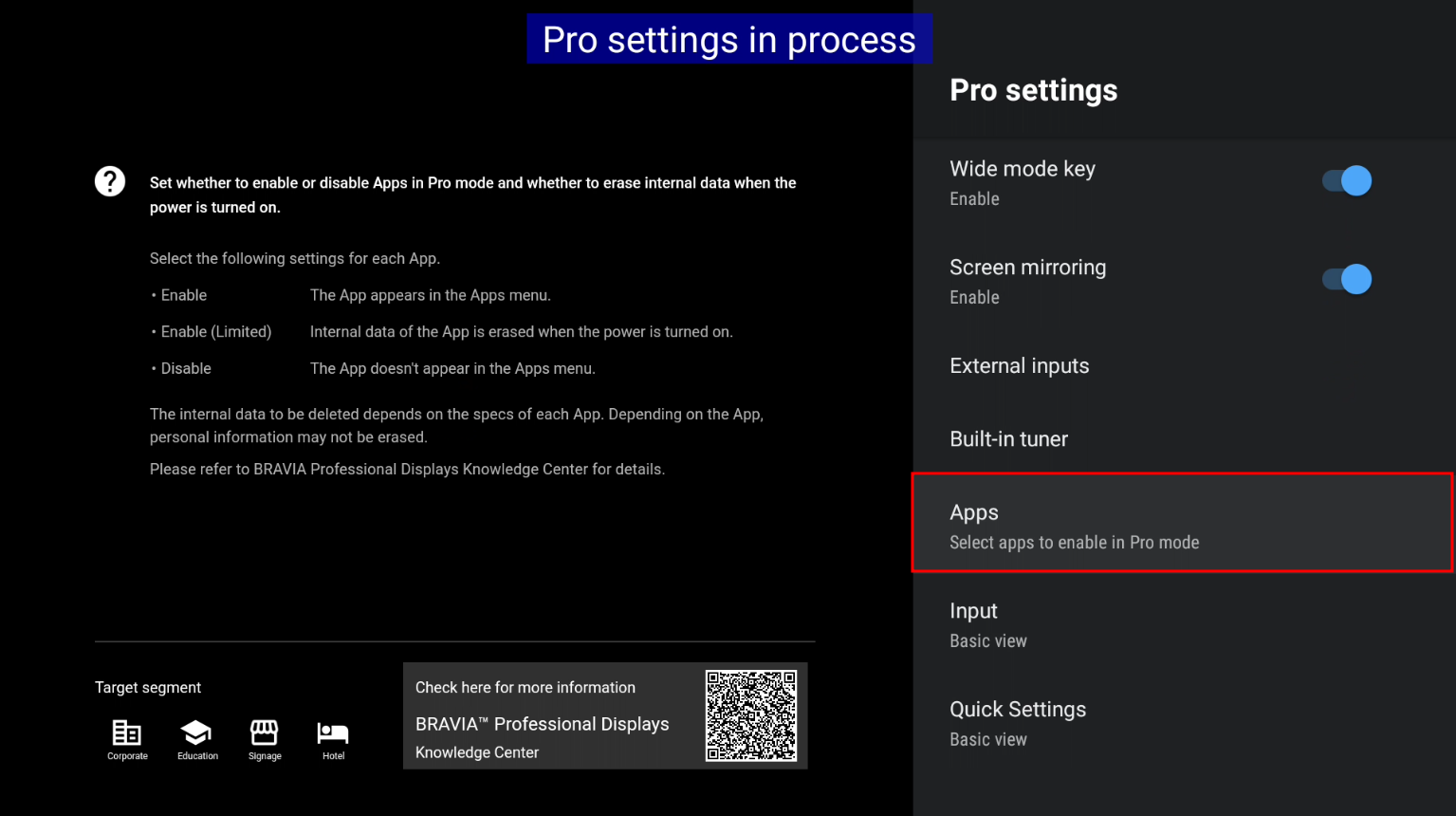
Make sure you enable it here:
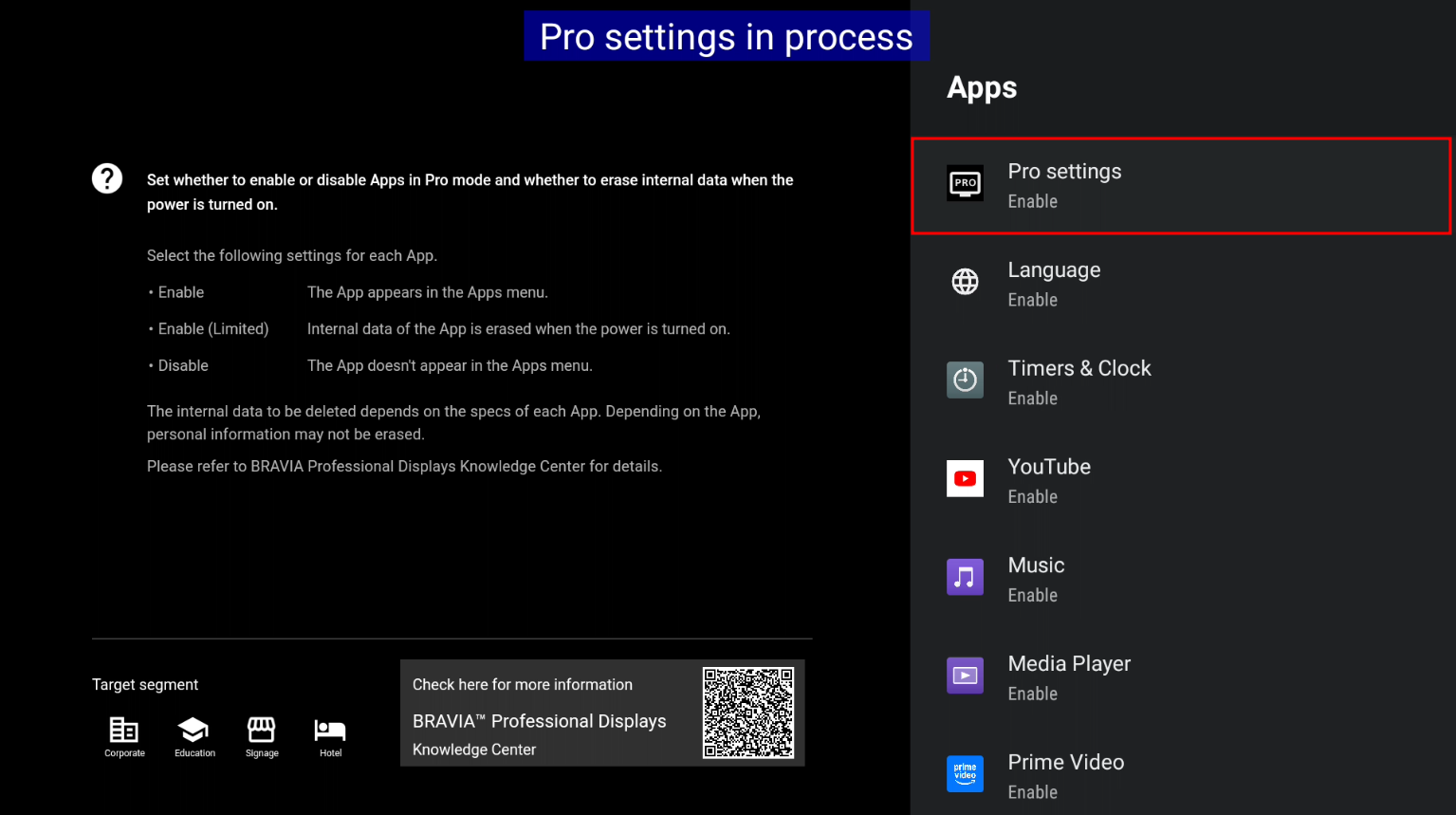
Go back to the other modes:
You can go back to the other modes if you want to change settings, etc, by going back into the Pro Settings app and selecting the mode you want.
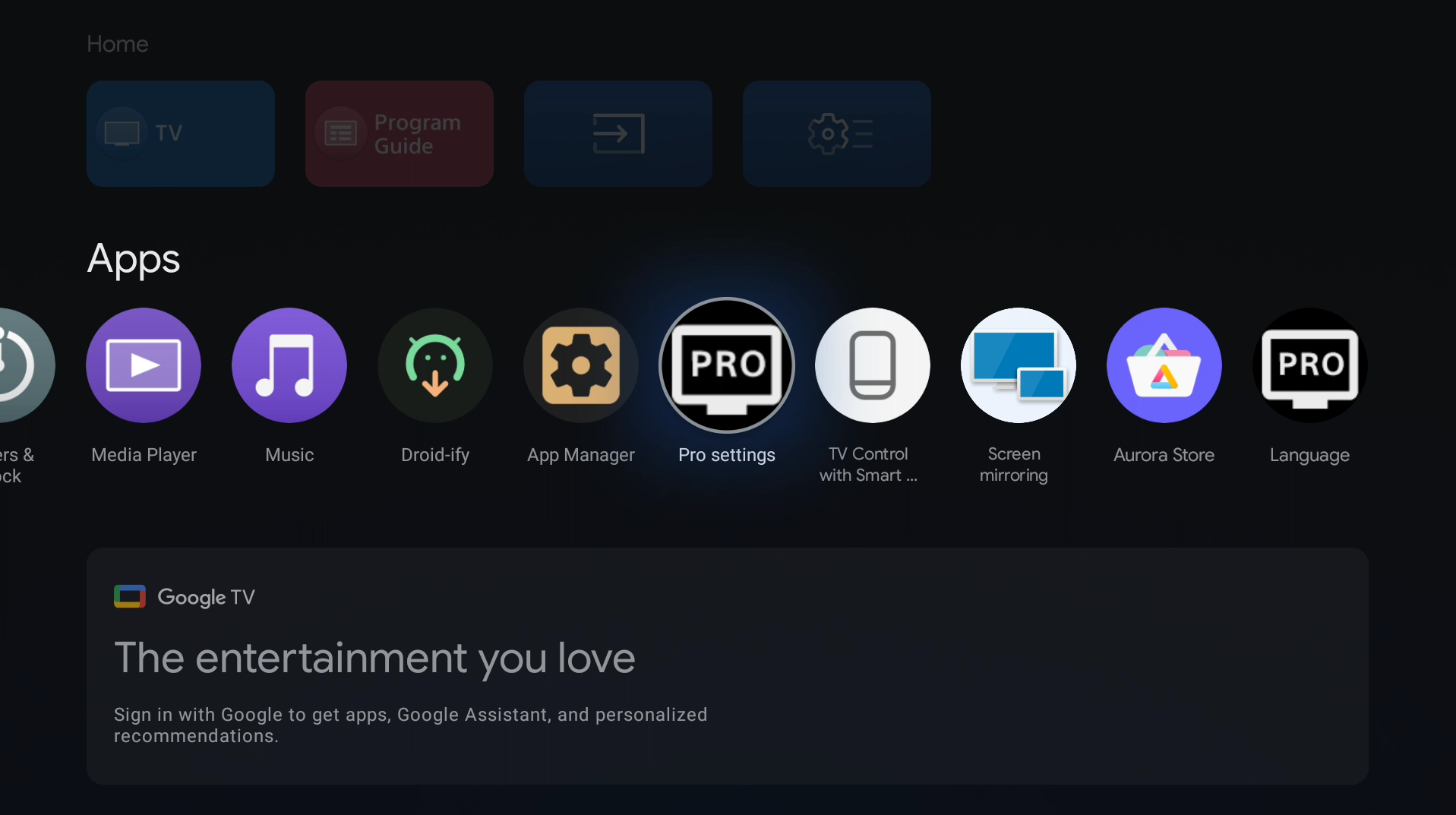
Example Image:
Here's an example image I got on the TV that I used in this guide for the stuff working.