Getting Started
This chapter is so we can get our TV ready, check to see if it's maybe supported if it's not in the "Known supported models" list and to get the software we need on our computer to extract the firmware and get our apk.
Prepare your TV
Check to see if your TV is supported
Now we can check if your TV is supported by checking to see if "ProMode" and "ProSettings" is installed or not in your "All apps" section in your settings menu.
On your TV go to the settings app and in order go to:
- Apps
- See all apps
- Show system apps
Then in the list, look for the app called "Pro Mode" it will have this under the name on the right -> com.sony.dtv.b2b.hotelmode
If you see under it or in the "All apps" list somewhere, there should be another item called "ProSettings" and it will have this under its name on the right -> com.sony.dtv.b2b.prosettings, and if so, then your TV should be supported. Example below.
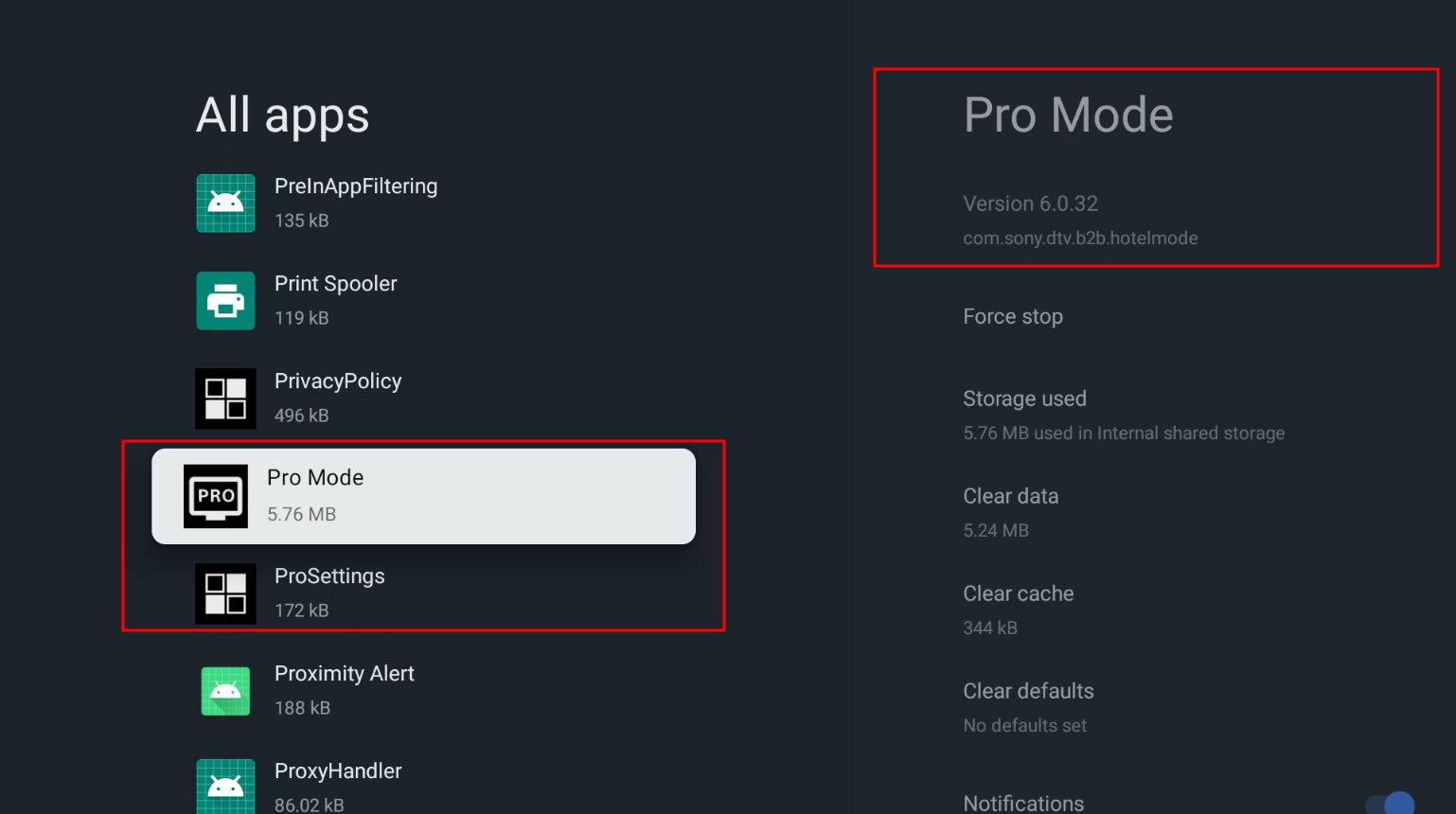
Side note: you also don't need to be signed into a google account to do this.
Getting ADB debugging Enabled
To enabled Developer Options we can do this in order in settings again:
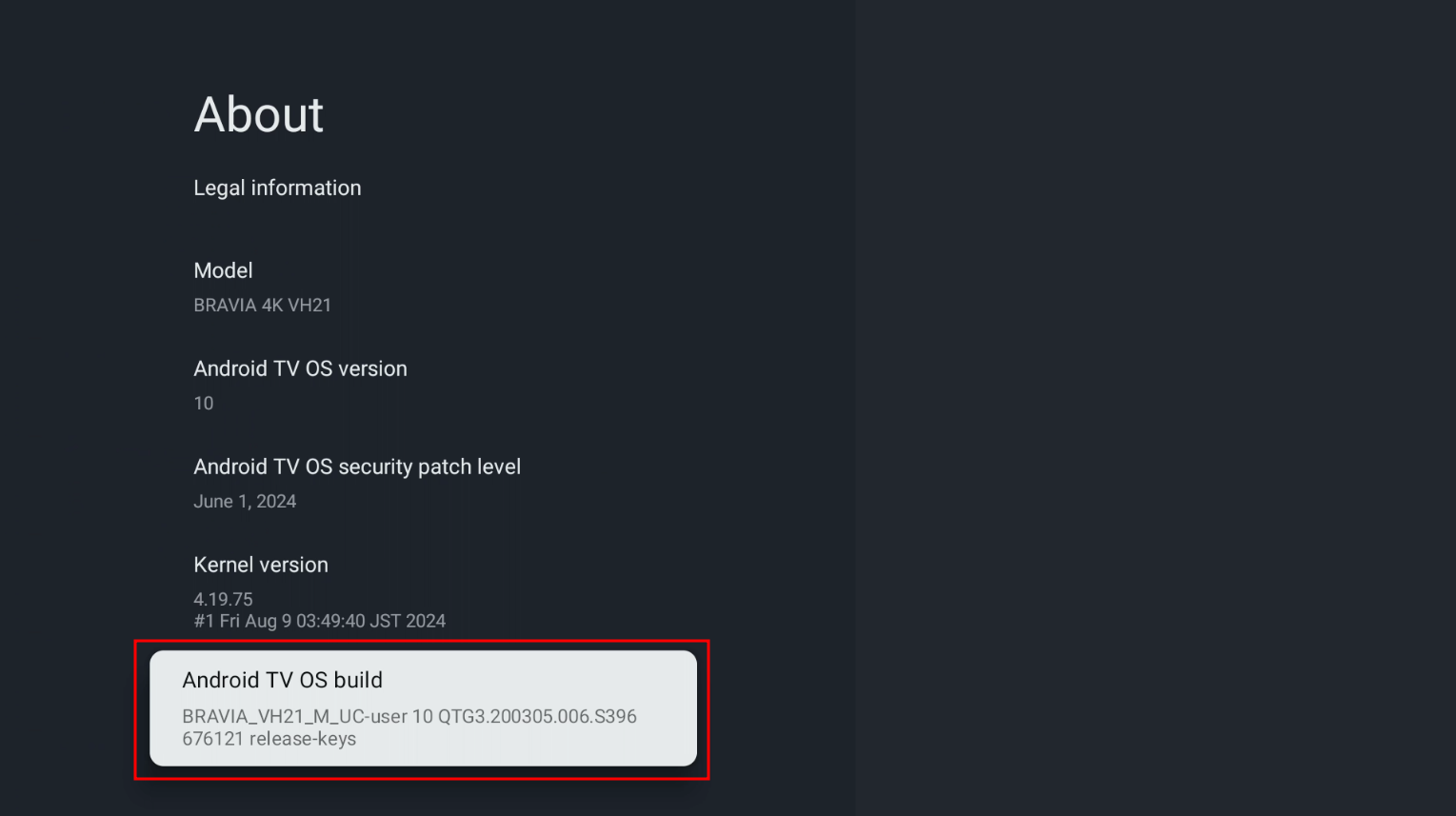
Turning on ADB debugging
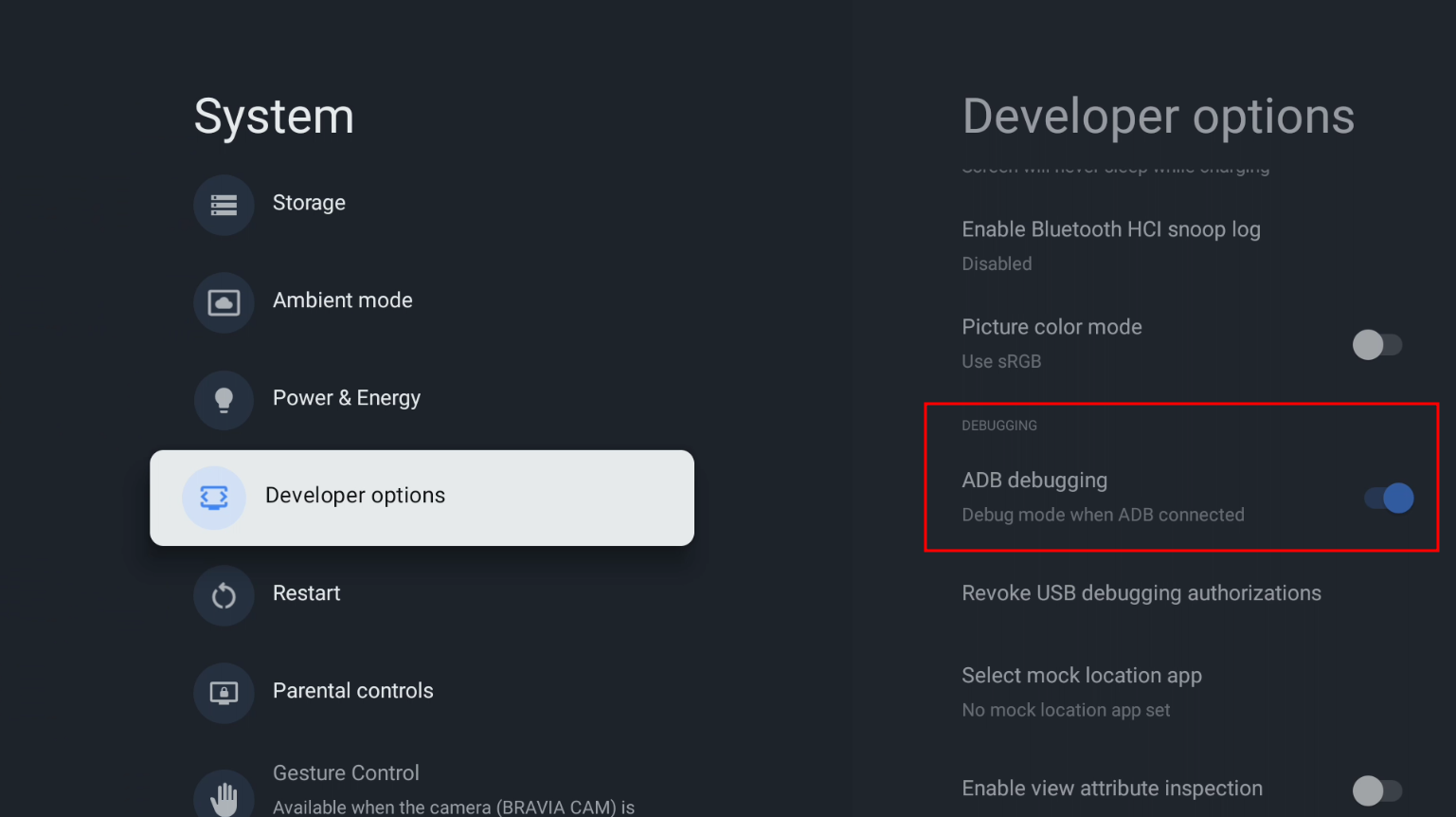
Now to actually turn ADB debugging on follow these steps:
- Go back one page
- Scroll down until you see the new option "Developer options"
- When you click on it, scroll down a little and you'll see the option "ADB debugging" and enable that.
Getting your TV's IP address
Now when we're ready to side-load our app, we need to use adb but it requires the TV's IP address to connect to it so to get it you do this in order:
- Go back to the settings main menu
- Network & Internet
- Hover over your network name that your TV is connected to
- On the right side it should say "IP address" note that down or remember it for later
Getting the software ready
On your computer follow these steps on a Windows based PC.
Installing 7zip
The first piece of software we need is 7zip, we can install it like this:
You can get 7zip here: https://www.7-zip.org/
Notes: You need to download to correct one for your system. For me and Modern systems, it is the "64-bit x64" one at the top. You should only get the "32-bit x86" one if your system is quite old (Like a decade or more) and even then that's a "maybe". You should get the ARM version if you're on an ARM-based computer..
Installing Python
We also need to install Python. Python is a programming language and we need it to be able to use the scripts we're going to use later which are from the LineageOS project.
You can get it here: https://www.python.org/
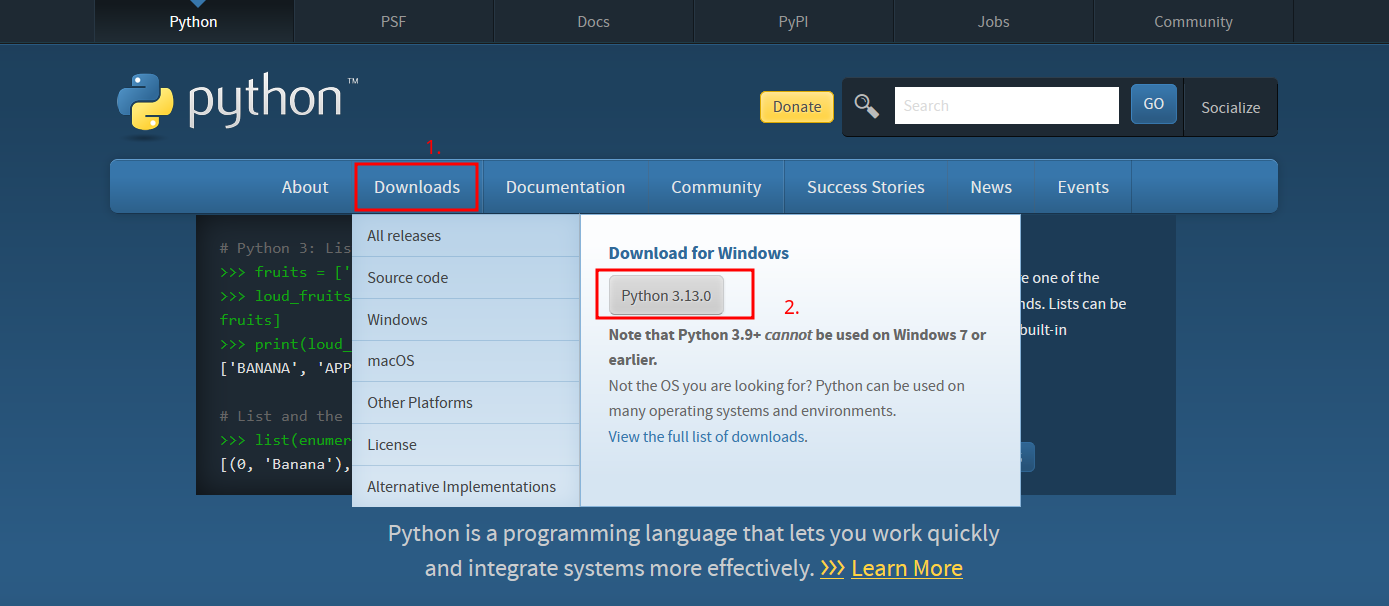
Notes: hover your mouse over the download button at the top and click the download button for the python version listed. At the time of writing this it's "3.13.0".
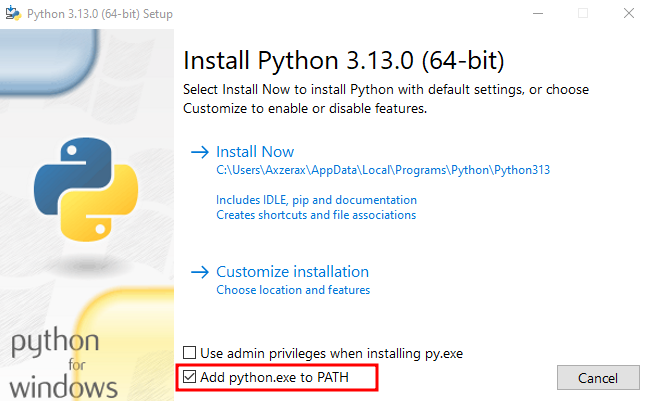
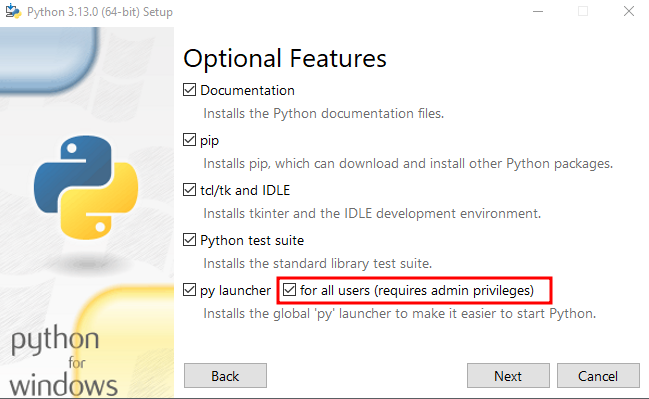
Instructions: After you download it, open the .exe that got downloaded and at the install menu click the option at the bottom to "Add python.exe to PATH". Then click "Customize installation" and make sure the option "pip" is checked and "for all users (requires admin privileges)" is checked (I had errors without doing that when installing) then click "Next".
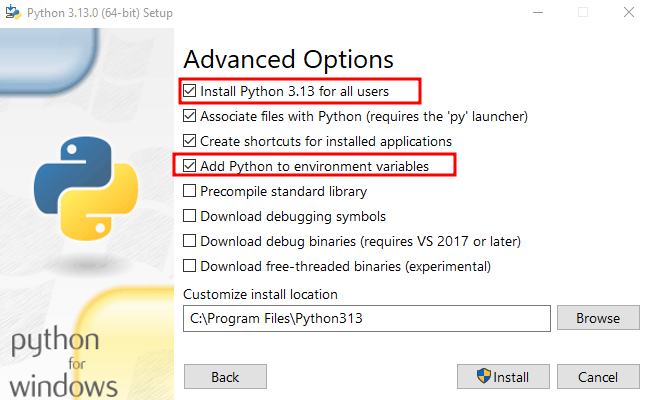
On the "Advanced Options" page make sure "Add Python to environment variables" is checked and "Install Python 3.13 for all users" is also checked (The 3.13 part is whatever version you downloaded). Then click "Install", it will ask for permission and wait for it to finish. After it says "Setup was successful" you can close the window. You can also now delete the setup file for python if you want.
Download page:
Add to PATH:
For all users:
Install for all users, add to environment variables:
Getting the firmware extraction scripts
Now we need to get the scripts to help us extract the "payload.bin" file (the firmware).
You can get these from GitHub here: https://github.com/LineageOS/scripts/tree/dd225e1cebc81f693ac1b981ac853cf819321b49
Instructions: Click the green "<> Code" button at the top then click the "Download ZIP" button for it to download.
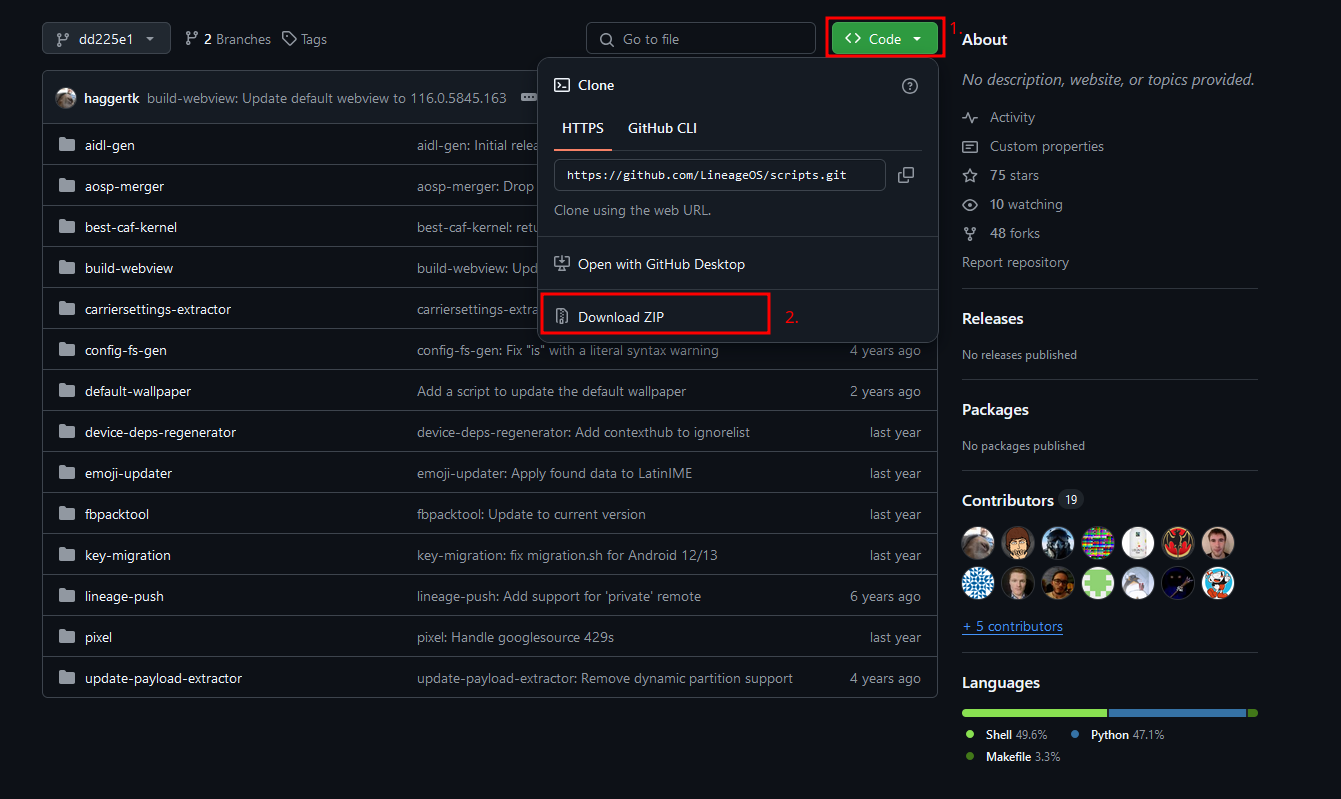
Getting the firmware
We need to of course get the firmware to extract. The file will be about 2GB
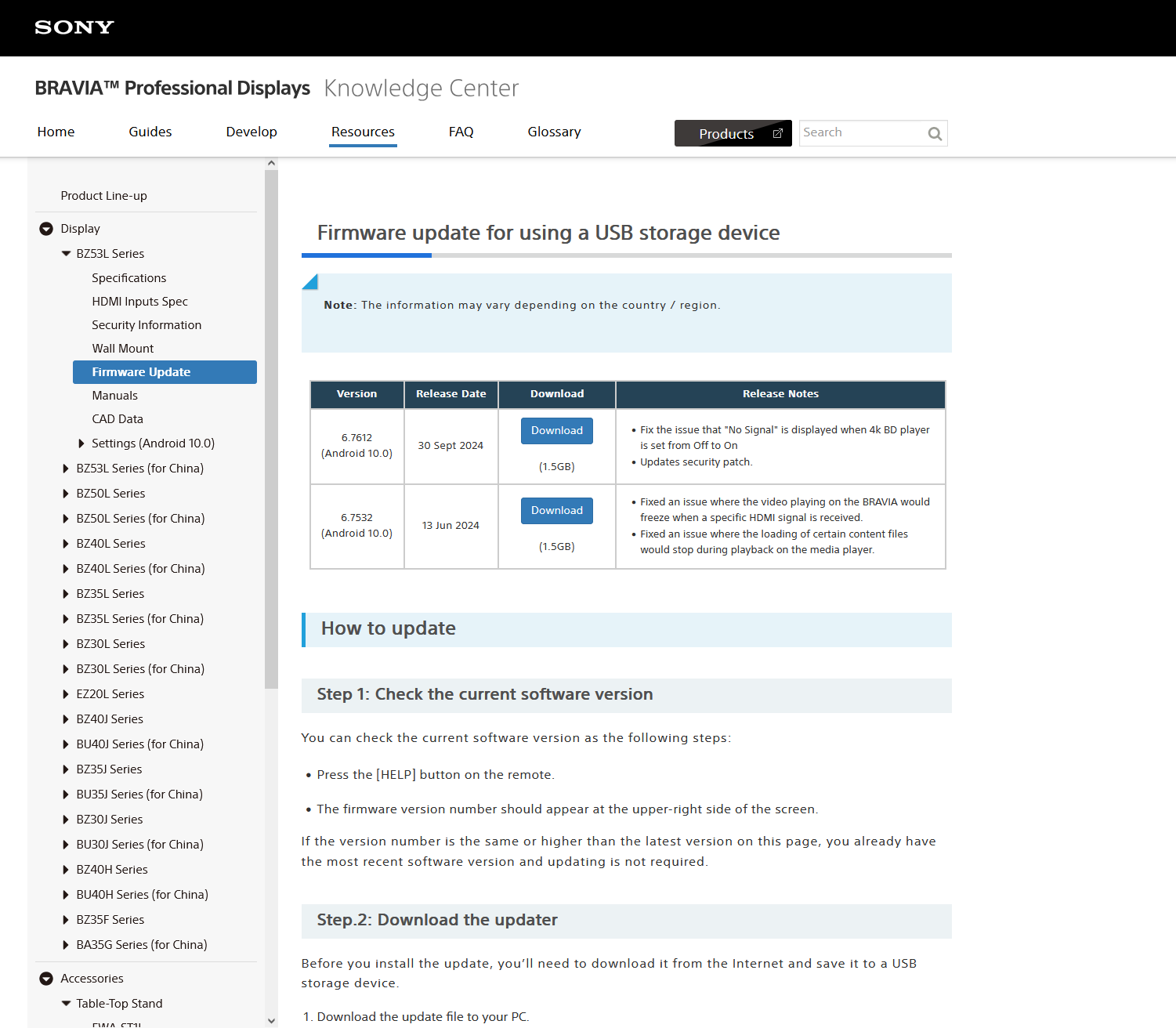
You can get it here: https://pro-bravia.sony.net/resources/display/bz53l-series/firmware-update/index.html
Notes: In the future if this firmware is no longer being updated, get a firmware that's supported to get the latest versions.
Instructions: We need to download the latest version available, at the time of writing this it's "6.7612 (Android 10.0)" with a release date of "30 Sept 2024". Click the download button for the latest release, then scroll down and click the download button again for it to start downloading.